Monero Remote Node: How to Choose One and Connect Your Phone Wallet
A Monero remote node is a node that someone else runs. Your phone wallet asks it for blocks and sends your transactions through it. To connect, you need the node's address and port, plus a login only if the node asks for one. This guide lists the two nodes we run, explains the ports, and shows how to add any node in Monero One on iPhone and Android.
We make Monero One, and we run the nodes in the list below. Any Monero wallet can use them.
How We Checked
On October 22, 2026, we sent a read-only get_info call to each node address in this guide. Each one answered, at block height 3,789,710. We read the Monero docs and the node lists that people search for. For Monero One, we read the app source code at the store versions, iOS 1.0.9 (10) and Android 1.0.9 (15), and at the beta versions, iOS 1.1.0 (11) and Android 1.1.0 (19). We quote the app's own labels. The screenshots show Monero One for iPhone 1.1.0 (11) and Android 1.1.0 (18), with demo wallets.
Remote Node or Your Own Node?
Your wallet needs a node to sync. The node keeps a full copy of the Monero blockchain. The wallet downloads blocks from it and checks them on your phone for payments to you.
- A remote node runs on someone else's computer. You type its address into your wallet and start at once. You need no disk space and no server.
- Your own node runs on a computer that you control. No outside operator sees your wallet's requests. You need the disk space, and the computer must stay on.
The Monero project's guide to remote nodes puts the choice plainly: "It is highly recommended that you either A) Run your own node, or B) Use a Trusted remote node - one that is controlled by someone that you trust."
Most phone users start with a remote node, and so does Monero One.
What a Remote Node Can See
A remote node sees your IP address and the times your wallet syncs. It also sees each transaction that you send through it, but not the recipient or the amount. Your keys, your seed and your balance stay on your phone, because Monero One scans the blocks on the device.
A remote node cannot spend your XMR. Our guide to what a Monero node sees explains each item and shows how to hide your IP address.
Monero Remote Node List: Our Two Nodes
We run two public nodes, one in the US and one in the EU. Each one has a normal address and an onion address for Tor.
| Node | Address | Port | Connection |
|---|---|---|---|
| US | us.node.monero.one | 443 | TLS (https) |
| EU | eu.node.monero.one | 443 | TLS (https) |
The onion addresses work only over Tor. Both use port 18089, with no https.
| Node | Onion address |
|---|---|
| US | 5tvl5acn3sm7id4gzc4mj6n7lrwlyrhssr2r57zkxk6eugxwix4ze4qd.onion |
| EU | zu3oyzi45x3ul24sncs4245nlpz76jzizm36tvrkfvq2r33azzjv5syd.onion |
Port 18089 also works on the two normal addresses, with TLS. We keep it for older setups. You need no login for any of them.
Here is how we set them up. Each node offers only the limited, public part of the node's API. It keeps a pruned copy of the blockchain. It loads the community ban list of suspected spy nodes from Boog900's monero-ban-list, which Boog900 and Rucknium sign, and it turns on monerod's DNS blocklist. The iPhone app's default node, node.monero.one, is also ours.
You do not have to trust us. Public lists such as monero.fail and xmr.ditatompel.com show many public nodes and their status. The ditatompel list also shows uptime. It has Spy Node and Ban List Enabled columns too. Monero.fail carries a warning: "There has been an influx of malicious nodes hosted by chain analysis and government agencies which spy on Monero users. Some of them may be in this list - it's impossible to know."
Which Port Should You Use?
A Monero node can listen on several ports. Each one does a different job.
| Port | What it is | Use it from a phone? |
|---|---|---|
| 18081 | monerod's default RPC port. The Monero docs call it "Unrestricted." | Only for your own node, with a login |
| 18089 | The usual port for the limited API on public nodes | Yes, if the node offers it |
| 443 | The web's TLS port. Some nodes, ours included, serve the limited API on it | Yes, the best choice in Monero One |
| 18080 | Node-to-node traffic | No, wallets do not connect here |
Use the port that the node's operator or the node list gives you. In Monero One, port 443 is the safe pick for a TLS node, because of how each app turns on TLS:
- iPhone: the app uses TLS when the address starts with https://.
- Android: the app uses TLS only on port 443. Its form says "Connection will be encrypted (TLS)" or "Connection will be unencrypted (HTTP)" before you save.
So a node that offers TLS only on 18089 connects on iPhone, but not on Android. Both apps connect to our nodes on 443.
How to Pick a Remote Node You Can Trust
"Trusted" means two things in Monero wallets.
The first is a node run by someone that you trust: you, a friend, or an operator who signs their name to it. No list can prove that a node is honest. A node that you run yourself is the only one that you can check.
The second is a wallet setting. The Monero GUI wallet lets you mark a node as trusted. Its Rescan wallet balance tool says: "Rescan spent can only be used with a trusted remote node." Monero One's Add Node form has no trusted switch.
When you pick a remote node, check these points:
- It is online and up to date. A node list shows the status and the last block height.
- It uses TLS or Tor. TLS keeps your network from reading the traffic. Tor hides your IP address from the node.
- It is not flagged. Skip a node that a list marks as a spy node.
- Someone stands behind it. Prefer a node with a named operator over a bare IP address.
- You have a backup. Add two or three nodes, so you can switch when one is slow.
How to Add a Remote Node in Monero One
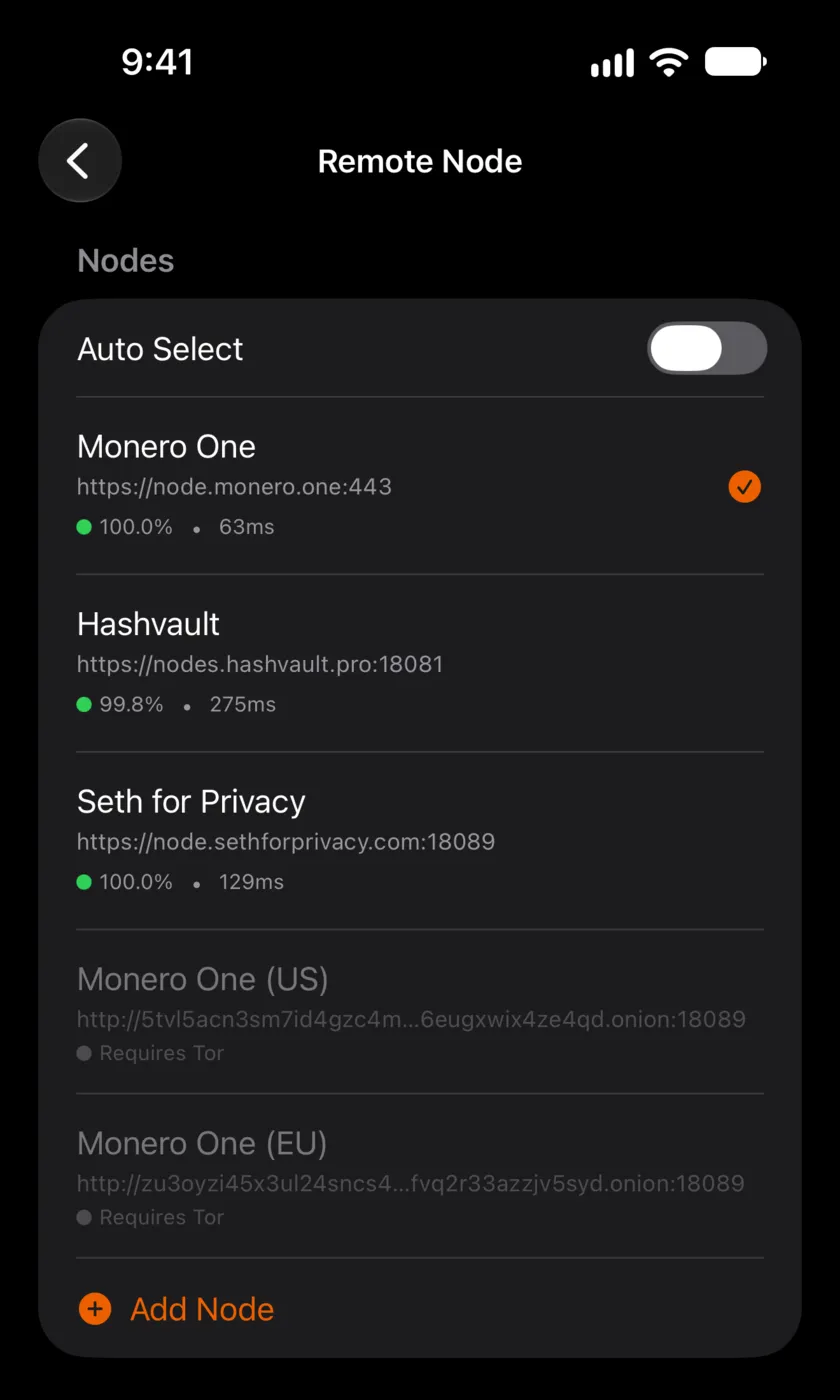
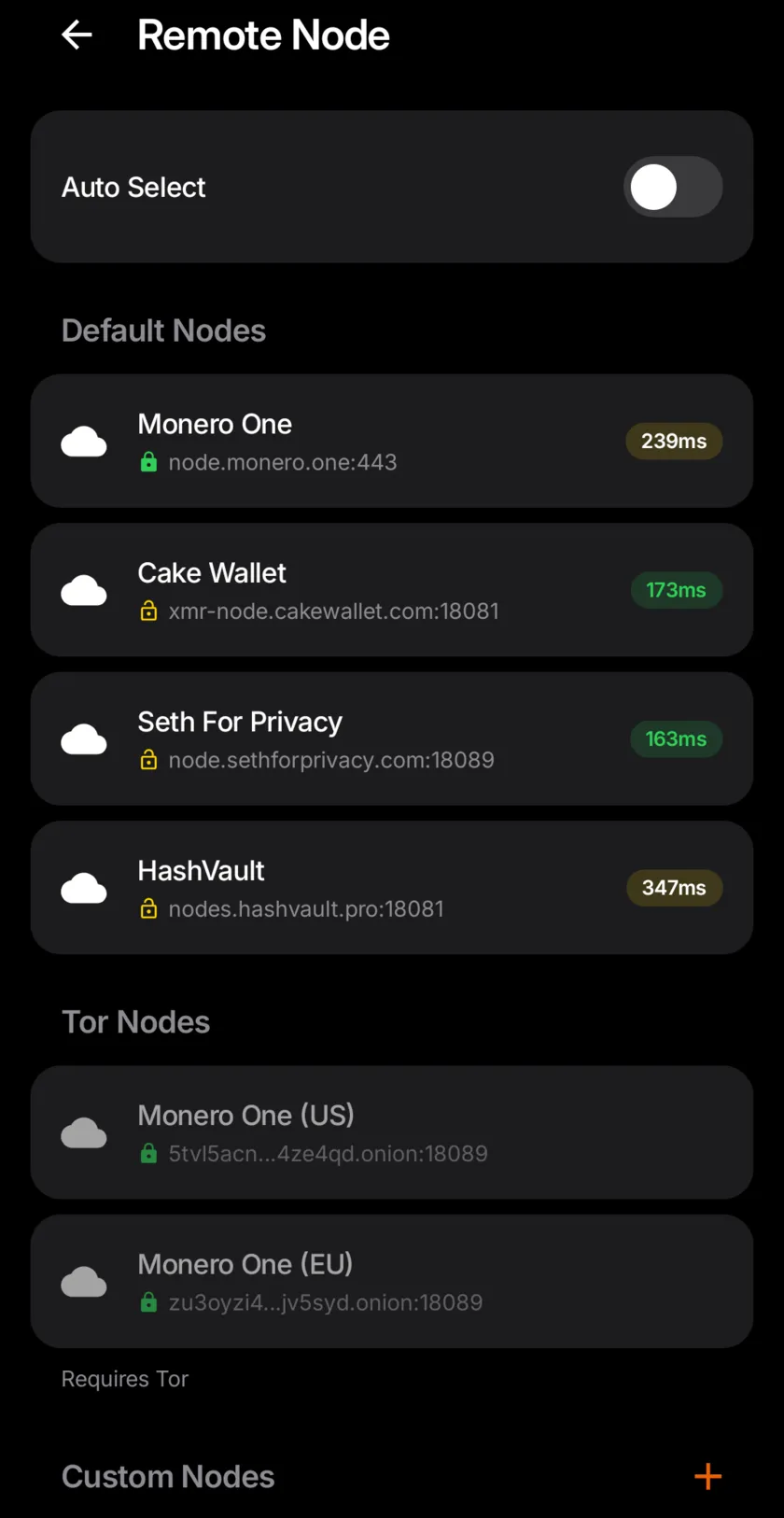
Both apps keep their nodes on the Remote Node screen. Open Settings, tap Sync Settings, then tap Remote Node.
On iPhone
- Open Settings, then Sync Settings. Under Connection, tap Remote Node.
- Tap Add Node at the bottom of the Nodes list.
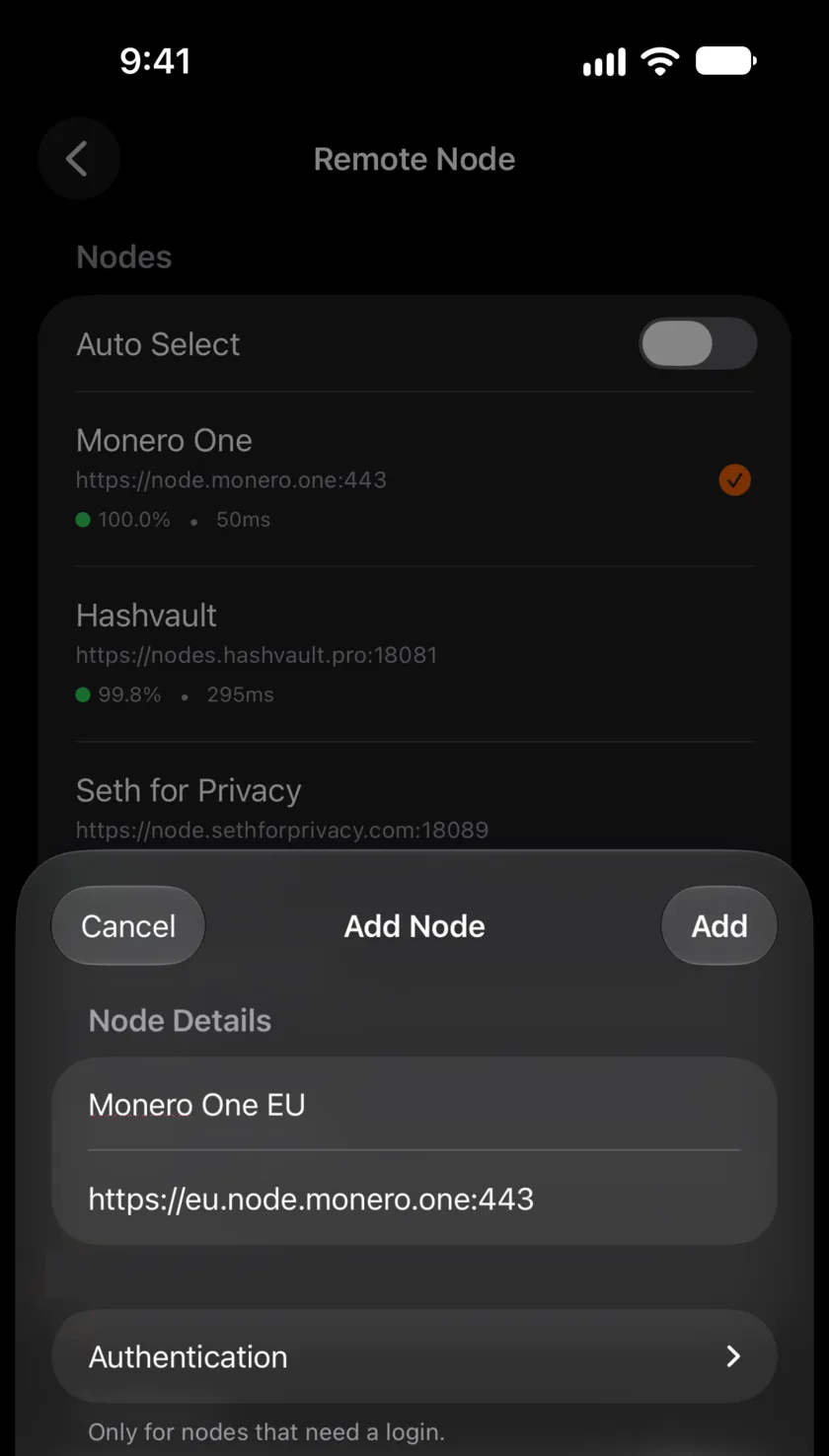
- In Name, type a name that you will recognize, for example Monero One EU.
- In the address field (it shows https://node.example.com:18089), type the full address with https:// and the port, for example https://eu.node.monero.one:443.
- If the node needs a login, open Authentication and type the Username and Password. The app says this is "Only for nodes that need a login."
- Tap Add. The node shows up in the Nodes list.
- Tap the node to use it. This turns off Auto Select.
To change a node, tap its pencil icon to open Edit Node. To remove it, swipe left on it.
On Android
- Open Settings, then Sync Settings, then Remote Node.
- Next to Custom Nodes, tap the plus button (Add Node).
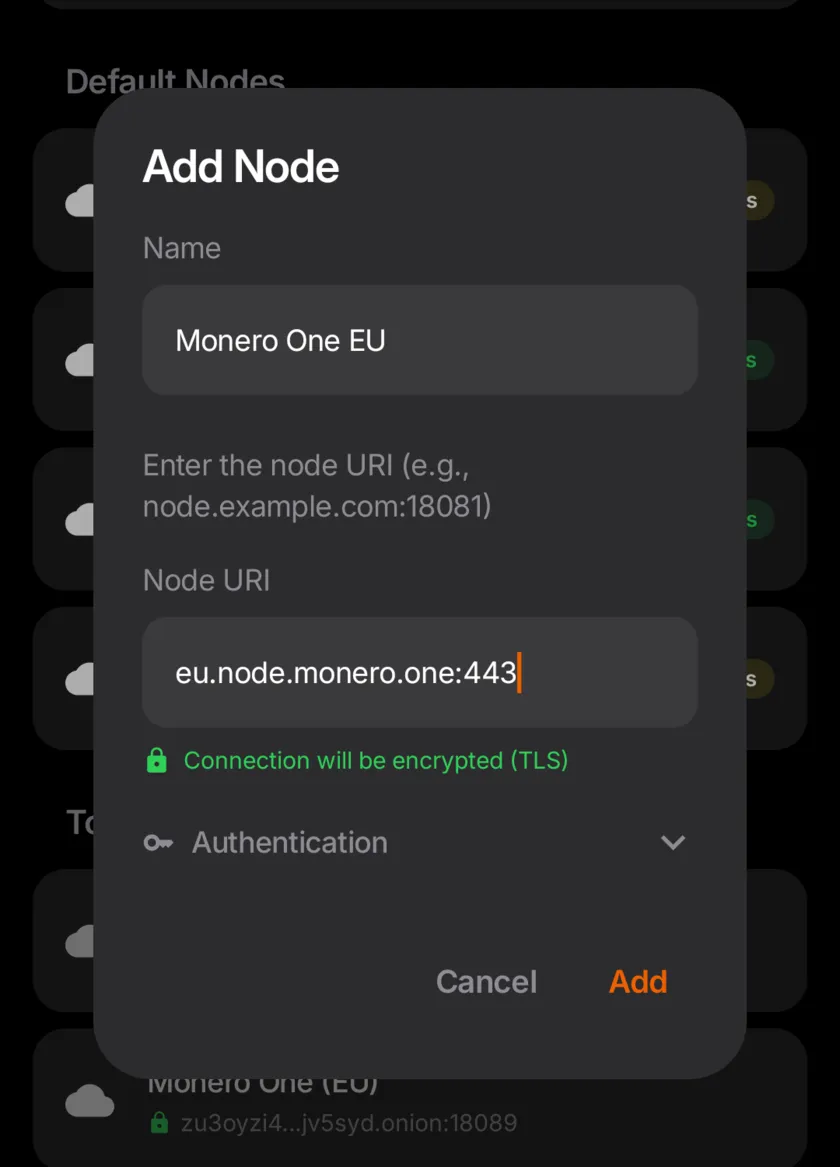
- In Name, type a name. The store version 1.0.9 has no Name field and calls every node you add "Custom Node."
- In Node URI, type the address and port with a colon, for example eu.node.monero.one:443. Leave out https://.
- Read the line under the field. It should say "Connection will be encrypted (TLS)."
- If the node needs a login, open Authentication and type the Username and Password.
- Tap Add, then tap the node under Custom Nodes to use it.
Each node you add has Edit and Delete buttons. Delete removes the node at once, with no second question.
The Android app checks the address before it saves. "Include port (e.g., :18081)" means you left out the port. "TLS nodes must use port 443" means you typed https:// with another port.
How to Tell That Your Wallet Connected
After you pick a node, go back to Sync Settings. The Status row shows Connecting..., then the scan progress, then Synced.
On the Remote Node screen, each node shows how fast it answered, in milliseconds. On iPhone, a node can also show its uptime next to a green dot. On Android, the time turns from green to yellow to red as the node gets slower, and a node that does not answer shows Unreachable. In the 1.1 betas, a node that refuses your login shows Auth failed.
If the status reads "Connection timed out. Try again or switch nodes.", the wallet could not reach the node. Check the address and port, then try another node. Our guide to a Monero wallet that is not syncing has the full list of fixes.
How to Connect to a Monero Node over Tor
An onion node hides your IP address from the node operator. Monero One has no built-in Tor, so you need Orbot or another Tor app on the phone.
- Install Orbot and start it.
- In Monero One, open Settings, then Sync Settings, then Remote Node.
- Turn on Use Tor Proxy. Read the warning, then tap Turn On.
- Pick Monero One (US) or Monero One (EU). On Android, they are under Tor Nodes.
The onion nodes say Requires Tor until the proxy is on. On iPhone, Auto Select never picks an onion node, so you pick it yourself. Our node privacy guide covers the Orbot setup and the requests that stay outside the proxy.
Connect Your Own Node
If you run monerod at home, add it the same way as a remote node. Use its address and port, and type its login under Authentication.
Set up the node for a phone first. The Monero docs list the options: restricted-rpc for the limited API, rpc-login for a username and password, and rpc-ssl for TLS. The docs say to enable rpc-ssl "if you connect a remote wallet." On Android, serve TLS on port 443, or the app connects without it. The Monero docs on running a node cover the setup, and our privacy guide lists the disk space it needs.
FAQ
What is the default port for a Monero remote node?
monerod's default RPC port is 18081. Many public nodes open the limited API on 18089, and some, such as ours, also serve it on 443 with TLS. Use the port that the node list gives you.
Which remote node does Monero One use?
On iPhone, the default node is node.monero.one, which we run. A new Android install starts on one of three public nodes that others run: Cake Wallet, Seth For Privacy or HashVault. Auto Select is on in both apps, and you can pick or add any node.
Is a remote node safe?
A remote node cannot spend your XMR, and it cannot see your balance. It can see your IP address and the transactions you send. For more privacy, use an onion node with Tor, or run your own node.
Do I need a username and password?
Only if the node asks for one. Public nodes, such as ours, need no login. Your own node may use one, set with monerod's rpc-login option.
Why does my node say Requires Tor?
The address ends in .onion, so it works only over Tor. Start Orbot, then turn on Use Tor Proxy on the Remote Node screen.
Where can I find a list of Monero remote nodes?
Use a public list such as monero.fail or xmr.ditatompel.com, or the two nodes in this guide. No list can prove that a node is honest, so prefer Tor or your own node for the most privacy.
New to Monero One? Get it from the App Store or Google Play. The FAQ covers the basics.
Sources
Read on October 22, 2026.
- Monero project: remote node guide, monerod reference, running a node
- Monero GUI: wallet settings source
- Node lists: monero.fail, xmr.ditatompel.com
- Ban list: Boog900 monero-ban-list, simple-monerod image
- Monero One: iPhone source code, Android source code