What Is a Monero View Key, and Who Should Get It?
What is a Monero view key? It is the key that lets a wallet see the payments to your address. Anyone who has your private view key can see every payment you receive. It cannot spend your XMR, and it does not reliably show what you spent. This guide explains the keys, when to share the view key, and where to find it in Monero One, Feather and the GUI.
We make Monero One. The iPhone app shows your view key and can make a view-only wallet from one, so this guide also shows those screens.
How We Checked
On October 22, 2026, we read Moneropedia and the Monero project's user guides on view-only wallets and payment proofs. We read the Feather docs and the source code of Feather and the Monero GUI for their labels. For Monero One, we read the app source code at the store versions, iOS 1.0.9 (10) and Android 1.0.9 (15), and at the beta versions, iOS 1.1.0 (11) and Android 1.1.0 (19). The screenshots show Monero One for iPhone 1.1.0 (11), with a demo wallet.
Monero View Key, Spend Key and Address
Every Monero wallet has two pairs of keys. Moneropedia calls the view key "One of two sets of private and public cryptographic keys that each account has, with the private view key required to view all transactions related to the account."
| Key | What it does | Share it? |
|---|---|---|
| Private view key | Finds the payments to you on the blockchain | Only with someone who should see your incoming payments |
| Public view key | Part of your address | Yes, it is in your address |
| Private spend key | Signs the payments you send | Never |
| Public spend key | Part of your address | Yes, it is in your address |
Your address is the two public keys put together. Moneropedia says the address is "the concatenation, in Base58 format, of the public spend key and the public view key," plus a network byte and a checksum. So when people say "view key," they mean the private view key.
Your seed holds the rest. Moneropedia says the private spend key "is also an alternate representation of the mnemonic seed. It can be used to derive all other account keys." Anyone with your seed has every key, so a seed is never a thing to share. Our guide to Monero seed words covers the seed formats.
What Someone Can See with Your View Key
Moneropedia puts it this way: "By sharing a viewkey, a person is allowing access to view every incoming transaction for that address. However, outgoing transactions cannot be reliably viewed as of June 2017. Therefore, the balance of a Monero address as shown via a viewkey should not be relied upon."
In plain terms, a person with your private view key and your address:
- Can see every payment to you, with its amount and its time, from the start of your wallet and on into the future.
- Cannot see your sends in a reliable way, so any balance they work out may be too high.
- Cannot spend your XMR. That takes the private spend key.
- Cannot see who sent each payment. Monero hides the sender for everyone.
You cannot change a view key. It comes from your seed. If you share it, the person keeps that view of your wallet for as long as you use it.
When to Share Your View Key
Share it only when someone has a real need to see your incoming payments. These are the common cases:
- A view-only wallet of your own. You keep a watch copy on a second phone or a computer, and the copy cannot spend.
- A donation or business address. A team can watch the payments come in, while one person holds the seed.
- An audit or a tax review. An accountant can confirm the payments that you received.
- A cold wallet check. The Monero guide names "Validate incoming transactions to cold wallets or hardware wallets" as a use.
For one payment, you do not need the view key at all. See the section on payment proofs below.
Where to Find Your View Key
Monero One on iPhone
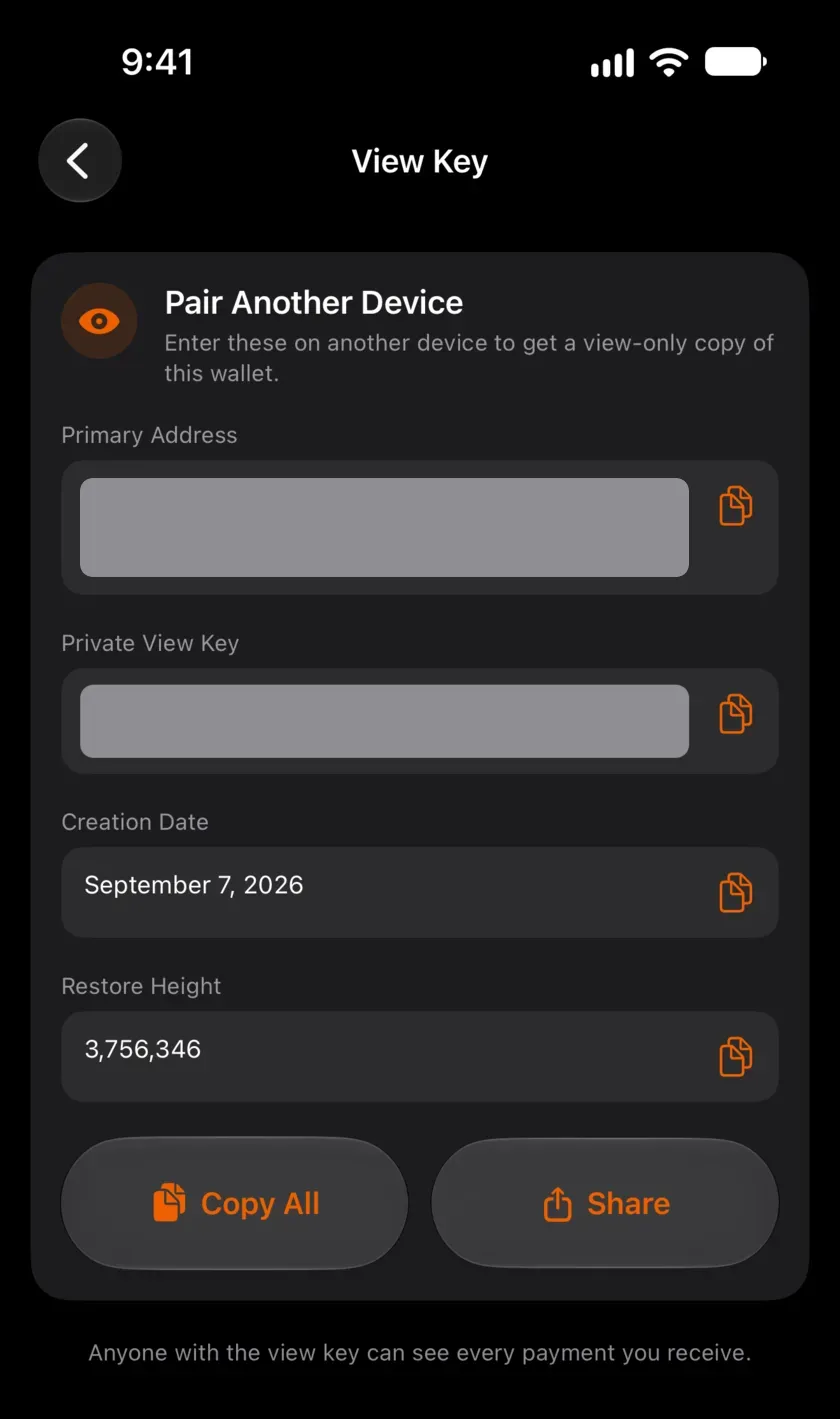
Open Settings and tap Export View Key. The View Key screen shows a card that reads "Pair Another Device" and "Enter these on another device to get a view-only copy of this wallet." Below it, you see four values, each with a copy button:
- Primary Address
- Private View Key
- Creation Date
- Restore Height
Copy All copies the four values, and Share opens the share sheet. The screen also warns: "Anyone with the view key can see every payment you receive." The app shows the private view key only, never the spend key.
Monero One on Android
The Android app does not show the view key, in the store version 1.0.9 or in the 1.1 beta. To get a view key for a wallet that you use on Android, restore the same seed in a wallet that shows it, such as Monero One on iPhone or Feather. Never type your seed into a website to get it.
Feather
On a computer, open the wallet in Feather. In the Wallet menu, choose Keys. The Keys window lists the Restore height, Primary address, Secret spend key, Secret view key, Public spend key and Public view key. Feather and the GUI call the private view key the secret view key.
Monero GUI
Open Settings, then Wallet, then Show seed & keys. Under Primary address & Keys, you find the Secret view key and the Public view key. Our guide to the Monero GUI wallet covers the rest of the app.
How to Make a View-Only Wallet
The Monero guide says a view-only wallet "can only see incoming transactions. Since it doesn't hold your mnemonic seed and private spend key, it can't sign transactions and it can't see outgoing transactions." It also warns: "If your wallet has outgoing transactions, the balance displayed will not be correct."
To make one, you need the wallet's primary address and its private view key. A restore height or a creation date makes the first sync faster.
Monero One on iPhone
- On the first screen, tap Restore Wallet. If you already use Monero One, tap your wallet's name at the top of the Wallet tab, then tap Add Wallet and Restore Wallet.
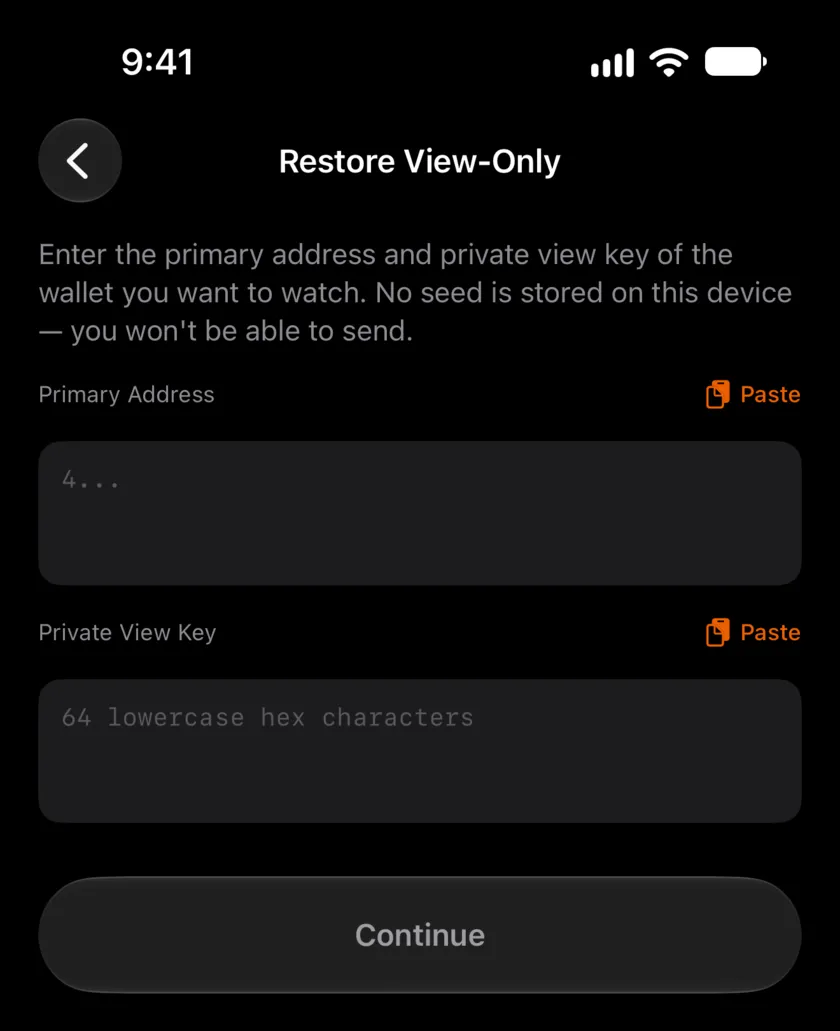
- On the Choose Restore Method screen, choose View Key ("Address + private view key") and tap Continue. The Restore View-Only screen opens.
- Paste the Primary Address, which starts with 4.
- Paste the Private View Key. It is 64 characters, from 0 to 9 and a to f. Tap Continue.
- On "When was the wallet created?", turn on "I know the creation date" and pick the date. With the switch off, the app scans from the beginning of the chain, which is slower.
- Set a PIN if the app asks for one, and name the wallet. Then let it sync.
The new wallet shows a View-only pill on its balance card. Send is off, and Backup Seed Phrase is hidden, because the wallet has no seed. The Android app does not make view-only wallets, in the store version or in the beta.
Feather and the GUI
In Feather, use Restore wallet from keys in the wizard, or Wallet, then View-Only, then Create view-only wallet. In the Monero GUI, open Settings, then Wallet, then Create a view-only wallet.
Why Light Wallets Ask for Your View Key
A light wallet hands the scan to a server, and the server needs your view key to do it. The Monero downloads page says these wallets "share your private view key with a remote server, which continuously scans the blockchain looking for your transactions." The Monero FAQ adds that the server "will know when you receive money."
Monero One scans on your phone. It connects to a node for blocks and sends the node no key. A remote node still sees your IP address, as our guide to what a Monero node sees explains. For more on web and light wallets, see our guide to online Monero wallets.
Prove One Payment Without Your View Key
For a dispute about one payment, a transaction key is better than a view key. The Monero guide to proving payments says you need three things: "the transaction ID," the recipient's address, and "the transaction's key." The other side checks them with check_tx_key in the CLI, or under Advanced, then Prove/Check, in the GUI.
That proof shows one payment. A view key shows all of them.
Monero One keeps a transaction key for the payments that you send from that phone. On iPhone, open the sent transaction and find the Transaction Key row. On Android, open the transaction and tap Show transaction key. If the payment was sent from another device, the app says "Transaction key unavailable on this device."
View Keys and Block Explorers
An address alone shows nothing on a block explorer. Some explorers have a tool that takes your address and your private view key, then lists the payments to you. These tools run on the explorer's server, so the server gets your view key and sees your incoming payments.
Use it only for an address that you do not mind making public, such as a donation address. For your own wallet, a view-only wallet on your own device shows the same payments and keeps the key at home.
FAQ
What is the difference between the private view key and the public view key?
The private view key finds your payments on the blockchain, and you share it only on purpose. The public view key is part of your address, so everyone who has your address already has it.
Can someone steal my Monero with my view key?
No. The view key shows payments to you, but it cannot sign a transaction. Spending takes the private spend key, which comes from your seed. Keep your seed offline and never share it.
Can a view key show my balance?
Not reliably. Moneropedia says outgoing transactions "cannot be reliably viewed," so the balance that a view key shows "should not be relied upon." A view-only wallet shows the payments you received, and it may show a balance that is too high.
My view key leaked. What do I do?
Your XMR is safe from spending, but the person can watch your incoming payments. A view key cannot be changed. If that matters, make a new wallet with a new seed, send your XMR to it, and give out the new address from then on.
Does Monero One send my view key to a server?
No. Monero One scans the blockchain on your phone, and it sends us no analytics. The iPhone app shows the view key on its View Key screen. The app does not send it to us or to the node.
New to Monero One? Get it from the App Store or Google Play. The FAQ covers the basics.
Sources
Read on October 22, 2026.
- Moneropedia: view key, spend key, address
- Monero project: view-only wallet guide, prove a payment, downloads, FAQ
- Feather: create a view-only wallet, Keys window source
- Monero GUI: Keys page source, wallet settings source
- Monero One: iPhone source code, Android source code