Monero GUI Wallet: Download, Verify, and Restore on a Phone
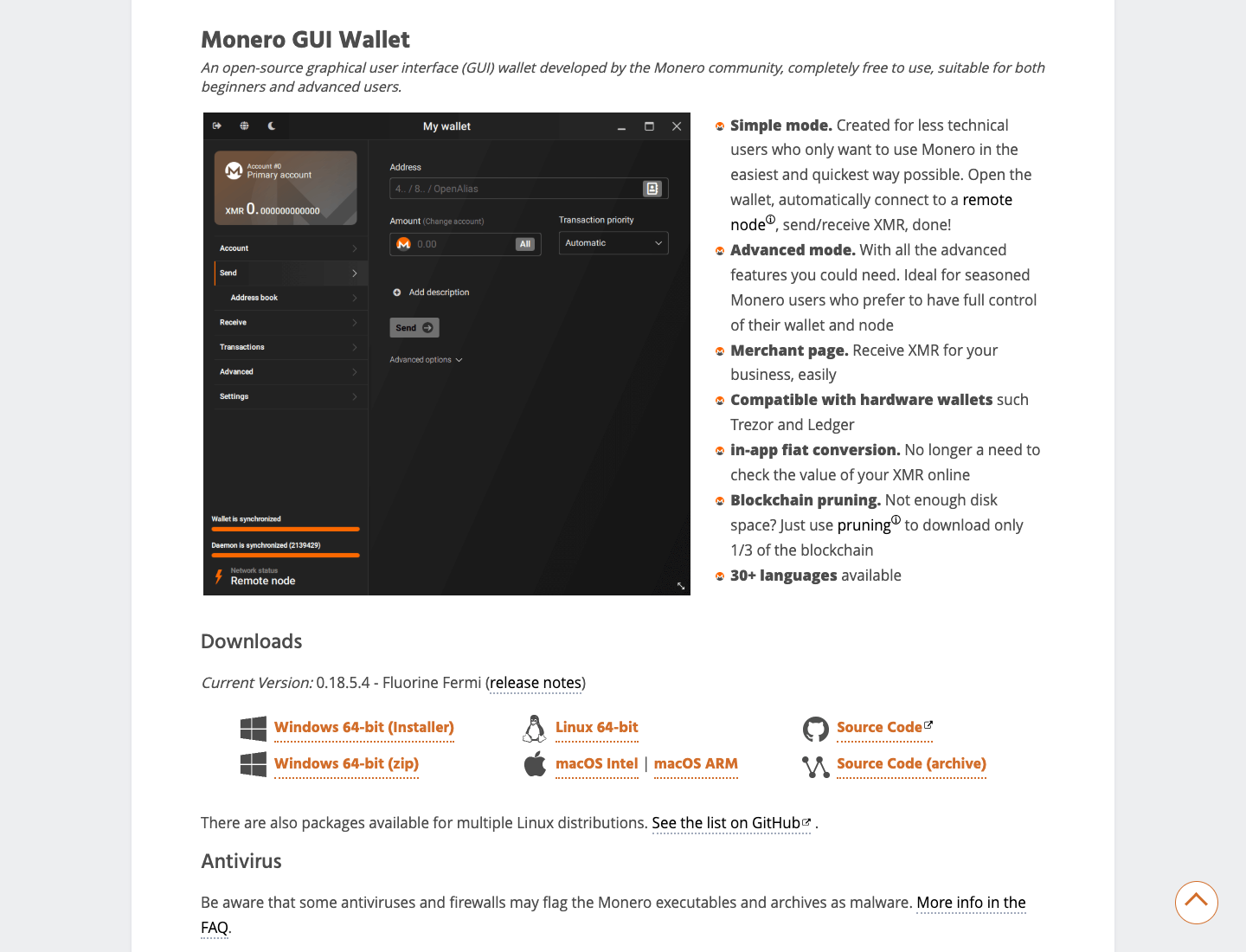
The Monero GUI wallet is the official desktop wallet from the Monero project. It runs on Windows, macOS and Linux. There is no official GUI build for iPhone or Android. Download it from getmonero.org, verify the file before you open it, and pick a mode. To use a standard software wallet on a phone, restore its 25-word seed in a phone wallet that reads that format, or send some XMR to a new phone wallet. Hardware wallets and seed offset passphrases need a different path, covered below.
We make Monero One, a phone wallet for iPhone and Android. The download and verification steps below do not depend on which phone wallet you use.
How We Checked
On October 20, 2026, we read the getmonero.org downloads page, verification guides, restore guides and FAQ, the Monero docs, the GUI release notes and the GUI source code for the current release. For Monero One, we read the restore screens in the app source code at the store versions, iOS 1.0.9 (10) and Android 1.0.9 (15). We did not do a test restore from the GUI to a phone for this guide.
Where the Monero GUI Runs
The Monero docs call the GUI the official desktop wallet for Linux, macOS and Windows. The downloads page has GUI builds for Windows, macOS (Intel and ARM) and 64-bit Linux, and no GUI build for a phone. It also lists command-line tools for Android ARM devices. Those are terminal programs, not a phone app.
The same page lists phone wallets from other teams. It says the core team does not manage them and asks you to do your own research.
Download and Verify the GUI
A matching checksum alone proves little. An attacker who gives you a fake file can also give you a fake list of checksums. So first prove that the list is real, then check your file against it. Do the steps in this order:
- Download the GUI for your computer from the getmonero.org downloads page. Do not open, extract or install it yet.
- Install GnuPG. On Windows, the beginner guide uses Gpg4win and its Kleopatra app.
- Get binaryFate's signing key from the Monero source repository. Compare its fingerprint, character by character, with the one in the official verification guide. If they differ, stop.
- Import the key into GnuPG.
- Save the signed hashes.txt and check its signature, for example with
gpg --verify hashes.txt. Continue only on a good signature from that key. The guide shows that GnuPG can also warn that the key is not certified. A bad signature means stop. - Compute the SHA256 hash of your downloaded file. The guide uses shasum on macOS and Linux, and certUtil on Windows.
- In the verified hashes.txt, find the line with the exact file name you downloaded. The two hashes must match.
If the signature or the hash does not match, delete the files and do not run the app. Download again from getmonero.org and start over.
The official guides show file names from old releases as examples. Use the name of your own file. The Windows beginner guide walks through the Windows steps. The all-OS guide uses the command line.
Pick a Mode
When you first open the GUI, it asks you to pick a mode. These are the choices in the mode selection screen of the current source code:
| Mode | Node | Blockchain on your computer |
|---|---|---|
| Simple mode | A remote node | No |
| Simple mode (bootstrap) | A remote node until your local node catches up | Yes |
| Advanced mode | A local node or a remote node, your choice | Only with a local node |
Simple mode gives you sending, receiving and the basic tools. Both Simple modes work only on the main network, and the source code turns them off on Tails. Advanced mode adds features such as message verification and node settings. The restore guide shows Advanced mode asking you to start a local node or connect to a remote one. A custom remote node needs Advanced mode. You can change the mode later from the main menu.
You do not need to run a full node. The FAQ says you can send and receive through a remote node. It adds that the node operator can see the IP address a transaction comes from, but not the recipient or the amount. Our guide to what a Monero node sees has more.
Create or Restore a Wallet on the Desktop
To create a wallet, pick Create a new wallet. The GUI shows your seed. Write the words on paper, in order, and keep the paper offline. Then set a password. The GUI guide says the 25-word seed can view and spend your funds. The password only protects the wallet file on this computer. It is not part of the seed.
To restore a wallet, pick Restore wallet from keys or mnemonic seed and enter the 25 words. Then enter a restore height or a date at or before your first incoming payment. The restore guide explains why: a later start point misses funds, and an earlier one only takes longer to scan. Never move the date later to speed up the scan.
To see your seed later, go to Settings, then Wallet, then Show seed & keys. Settings, then Info shows the wallet restore height.
Use the Same Wallet on Your Phone
Way 1: Restore the GUI Seed on the Phone
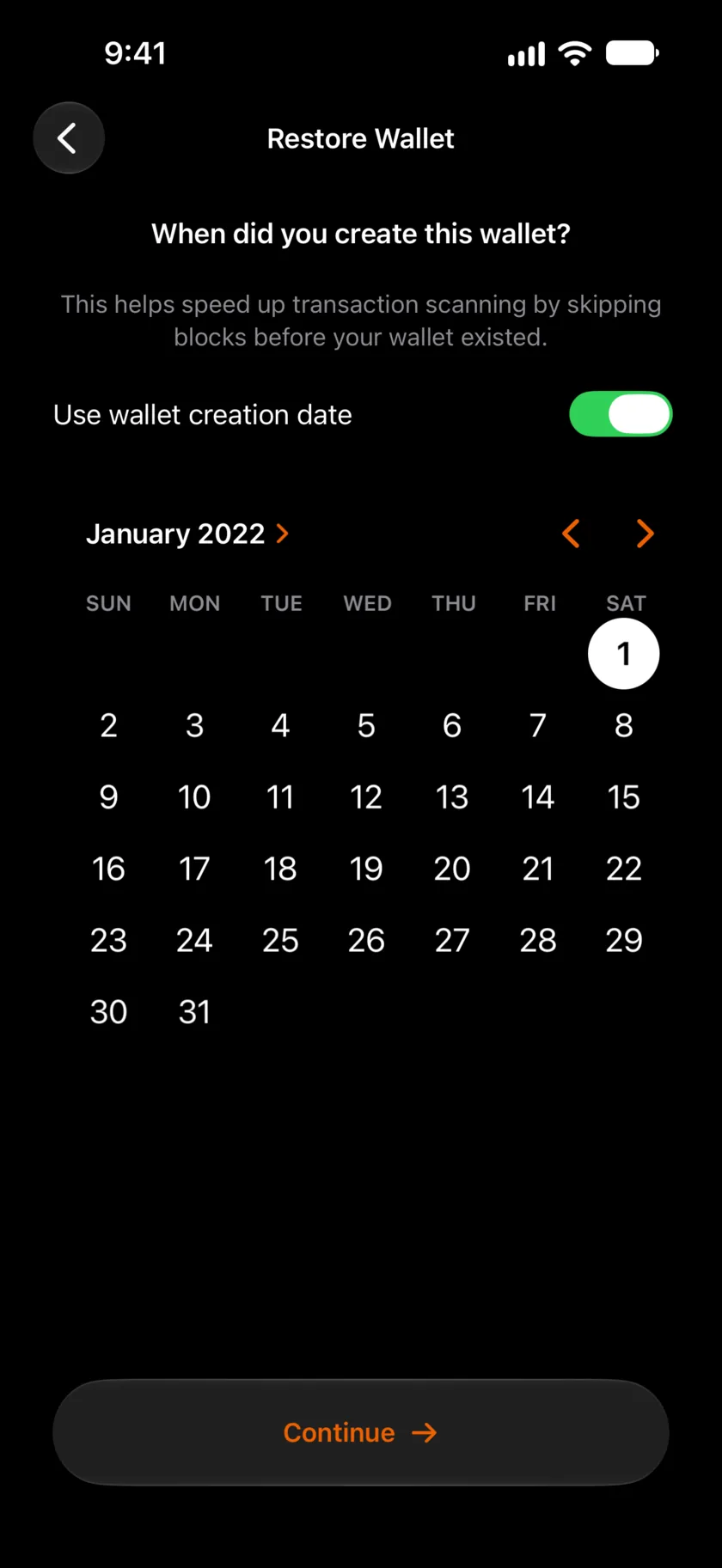
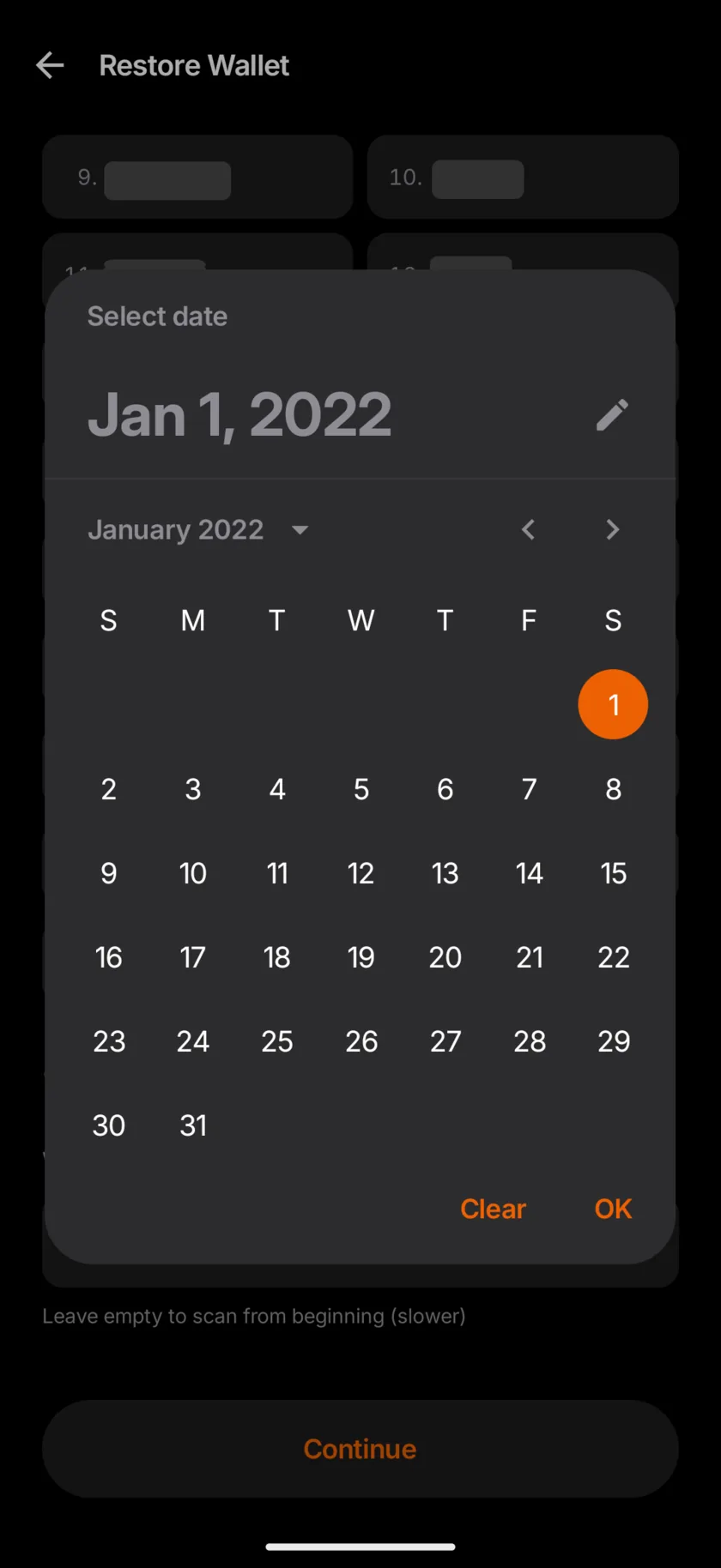
The phone opens the same wallet as the GUI. Your XMR does not move, and the restore has no network fee. Each app scans the blockchain on its own. Monero One restores 25-word Legacy seeds on iPhone and Android (iPhone source, Android source).
- On the phone, open the Restore Wallet screen and enter the 25 words.
- On iPhone, the next step asks: When did you create this wallet? Keep Use wallet creation date on, and pick a date before your first deposit.
- On Android, the Restore Wallet screen has a field named Wallet Birthday (Optional). Pick a date before your first deposit.
- Finish the restore and wait for the sync to end.
- Compare the main address on the phone with the primary address in the GUI. They must match.
The app turns the date into an approximate start block. If you are unsure, pick an earlier date. With no date, the app scans from the beginning, which is slower. Both apps ask you to confirm a date in the last 30 days, because the scan finds only transactions after it. If the balance shows zero after the sync, see our guide to a balance that shows zero after a restore.
A seed restores your keys and funds, not your local labels or address book. The GUI guide says account labels live in the wallet file, not in the seed. Notes and other local data can differ between apps.
Way 2: Send XMR to a New Phone Wallet
Create a new wallet on the phone and write down its own seed. Copy its receive address to the GUI. Paste it, never type it, and check the full address. Then send an amount from the GUI. This is a normal transaction, and the GUI wallet pays a network fee. The GUI wallet keeps the rest.
When Not to Restore on a Phone
Your wallet is on a hardware device
The downloads page lists Ledger and Trezor models that work with the GUI. A hardware device's recovery words belong with that device. Never type them into a phone wallet or a website. That puts your keys on an internet-connected phone. Keep using the device with software that supports it, such as the GUI. For XMR on your phone, use Way 2.
You added a seed offset passphrase
The GUI restore screen has a field for a seed offset passphrase, as the restore guide shows. The Monero docs explain that the passphrase changes the keys. The same 25 words without it open a different wallet. It is not your wallet file password. Monero One does not support a seed offset passphrase. Restore such a wallet only in software that supports one, such as the GUI, or use Way 2.
Common Problems
- The balance is zero after a restore. The start date or height is likely too late, or the sync has not ended. In the GUI, follow the restore height guide. On a phone, see our zero balance guide.
- The wallet does not sync. See our guide to a Monero wallet that is not syncing.
- The address does not match. A word, the word count or a passphrase differs. Our seed words guide explains each format.
- Your antivirus flags the download. Verify the file first, then read the antivirus FAQ entry.
FAQ
Is there a Monero GUI app for iPhone or Android?
No. The official GUI runs on Windows, macOS and Linux. On a phone, restore its seed in a phone wallet that reads 25 words, or send XMR to a new phone wallet.
Does restoring the seed on my phone move my XMR?
No. A restore opens the same wallet, so nothing moves and there is no network fee. Only a send to a new wallet is a transaction with a fee.
Can I keep using the GUI after I restore on my phone?
Yes. Both apps hold the same keys. Keep the seed paper offline, because anyone with those words can spend your XMR.
New to Monero One? The FAQ covers the basics. To compare wallets, see our Monero wallet comparison and the guides for iPhone and Android.
Sources
Read on October 20, 2026.
- Monero project: downloads, signed hash list, verification guide for all systems, Windows beginner verification guide, restore a wallet, change the restore height, remote node in the GUI, FAQ
- Monero docs: monero-wallet-gui reference, Legacy seeds
- Monero GUI on GitHub: latest release, mode selection source, wallet settings source, GUI user guide
- Signing key: binaryFate's key in the Monero repository
- Monero One: iPhone restore screen source, Android restore screen source